Introduction
The Scranalyzer app was designed to be the perfect kitchen assistant, able to translate existing recipes into digital versions and map your actual ingredients to those found in the recipe.
Every recipe we've ever found that listed ingredients would never use the ingredients we could actually get our hands on. So the nutritional information provided with the recipe was basically useless, since it would be the nutrition information for their ingredients, not ours.
With Scranalyzer, you don't have that problem anymore, simply scan a recipe, match your own personal ingredients and view the nutritional info.
What is Scranalyzer
Scranalyzer is an iOS app accessible via the App Store. Available to install here.
Why you'd use Scranalyzer
- Get accurate nutrition info for your ingredients - stop relying on generic recipe nutrition that doesn't match what you actually cook with.
- Easily digitize recipes - scan from cookbooks, magazines, or screenshots instead of typing them out.
- Save time - no more manually calculating calories, carbs, fats, and protein for each recipe.
- Avoid food waste - adjust servings and ingredient amounts precisely for your needs.
- Build a personal ingredient library - store your most-used items with accurate macros.
- Quickly add packaged foods - scan barcodes to instantly pull nutrition data.
- Speed up manual entry - use the Nutrition Label Scanner to autofill macros instead of typing them.
- Keep all recipes in one place - create, edit, and organize recipes in a searchable list.
- Match ingredients to what you actually have - easily swap out or replace items in recipes.
- Track nutrition for homemade or custom meals - perfect for special diets, fitness goals, or medical needs.
When you'd use Scranalyzer
- Testing new recipes - see how ingredient swaps impact nutrition before cooking.
- Meal planning - decide what to cook for the week and know the nutrition for each meal.
- Grocery shopping - check if your planned recipes align with your ingredients and macros.
- Cooking for different group sizes - instantly adjust recipes for 1 person, a family, or a party.
- Starting a new diet - keto, low-carb, high-protein, plant-based, etc., where accurate macros are essential.
- Recording family recipes - preserve old recipes digitally with modern nutrition info.
- Converting recipes to metric - automatically switch between imperial and metric units.
- Recreating meals from restaurants or friends - scan or manually enter ingredient lists to get full nutrition.
Quick Start Guide
Download the App
Get the app from the iOS App Store
Create an Account
Sign up using your email address and password
Add your most used ingredients
This makes building recipes easier, but you can skip straight to recipe scanning if you wish
Scan a recipe
Find a recipe, whether printed, written or online and scan it using our Recipe Scanner
The Recipes Page
The Recipes Page includes two main features:
- Recipes List: View and manage your saved recipes.
- Create a Recipe (Manual): Add a new recipe by manually entering ingredients and recipe details.
The Recipes List
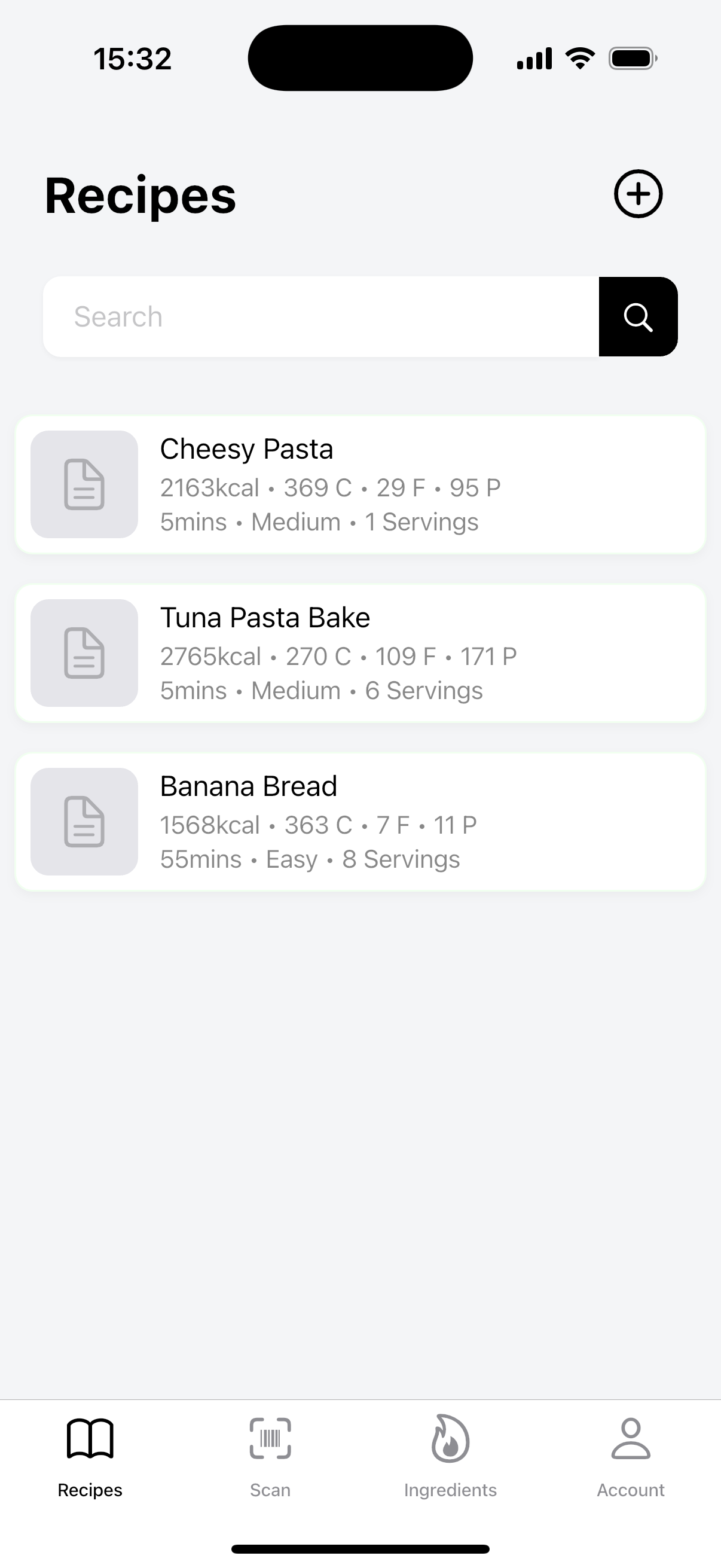
Recipes Page Overview
The Recipes List is the first page you will see after tapping the Recipes icon in the bottom-left of the navigation bar. It displays all your saved recipes in a scrollable list.
Each recipe card shows key details at a glance:
- Recipe name
- Total macronutrient content (for all servings)
- Preparation time
- Difficulty level
- Number of servings
Viewing recipe information
To view detailed recipe data, tap its corresponding recipe card. This will direct you to the Recipe Info page, where full details of the selected recipe are displayed.
Managing recipes
- Deleting a recipe: Swipe a recipe card to the left to reveal the Delete icon. Tap the icon to remove the recipe from your list.
- Searching for a recipe: Use the search bar at the top of the page to instantly filter recipes by name as you type.
Create a Recipe (Manual)
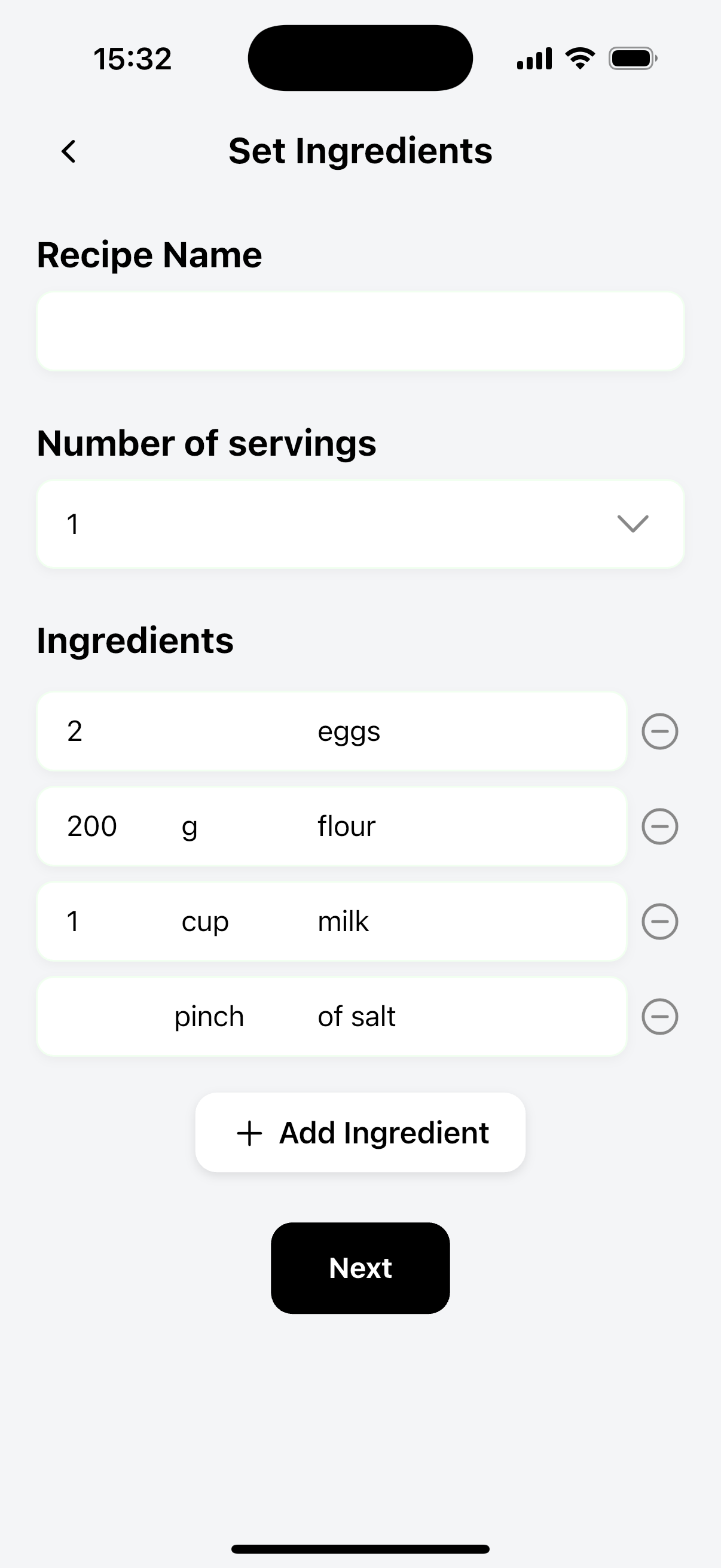
Set Ingredients Page - Manual Recipe Creation
To create a recipe from scratch instead of generating one from a scan or image, tap the Plus icon located in the top right corner.
This will open the Set Ingredients page.
The Recipe Info Page
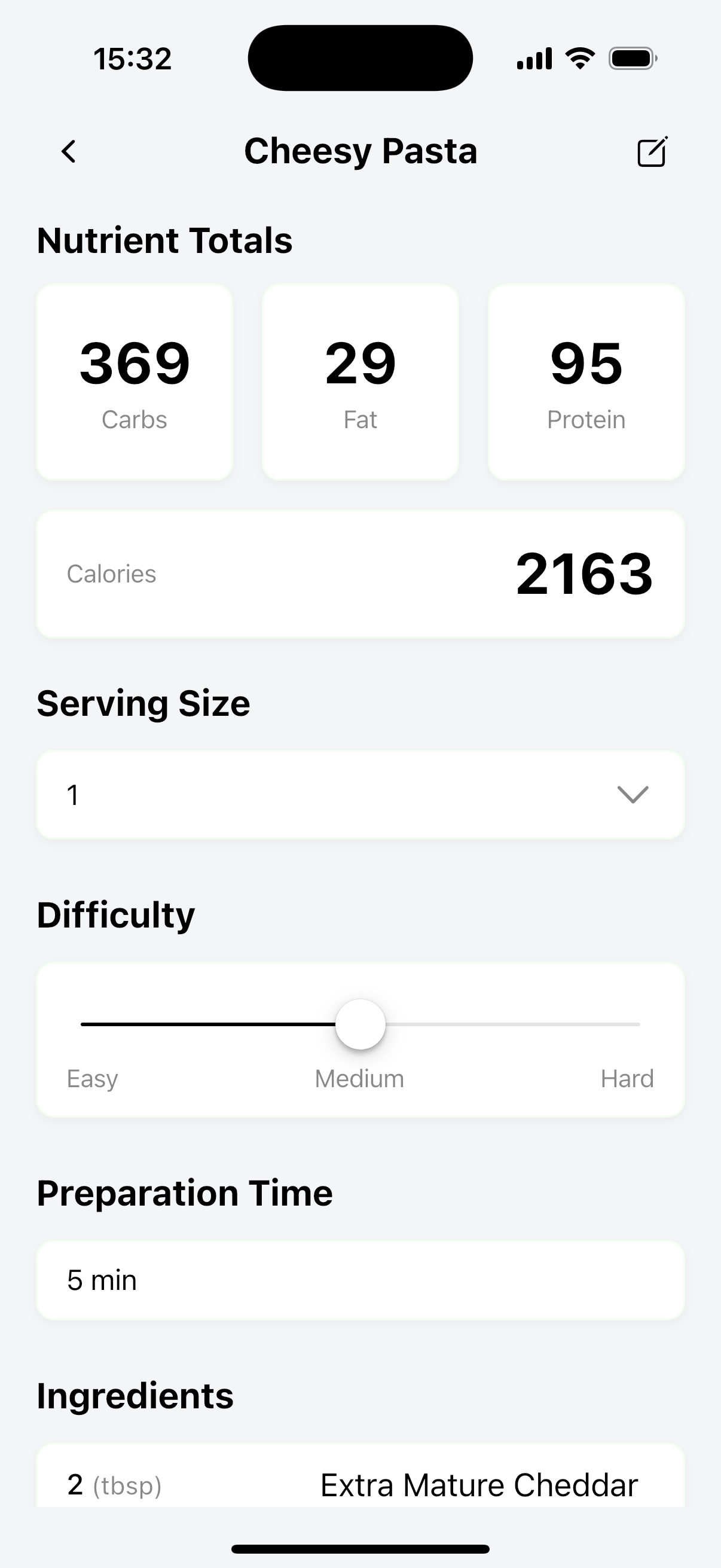
Recipe Info Page - Detailed Recipe View
Once you have a recipe in your Recipe List, you can tap on its recipe card to view full recipe information. The Recipe Info page will display the following:
- Carbs, Fat and Protein amounts (grams)
- Calories amount (kcal)
- Total Servings - This is the total number of servings the recipe produces
- Serving Size - This allows you to control your actual serving or portion size
- Preparation Difficulty
- Preparation Time
- Ingredients List - Tap each ingredient to be taken to its Ingredient Info Page
Changing the Serving Size
Recipes are often designed for larger groups, for example, 8 servings, but you may only need to cook for 2 or 4 people, or simply want to see the nutritional breakdown for a single portion.
You can adjust the Serving Size of the recipe using the dropdown menu on the Recipe Info page. Once updated, the following elements recalculate dynamically:
- The nutrient totals: The Carbs, Fat, Protein and Calorie amounts will automatically update to suit your desired serving size.
- The individual ingredient amounts: The amount per ingredient will update to show you how much of each ingredient you'll need to use if making the recipe for a different number of servings.
Editing a Recipe
To edit a recipe, tap the Edit icon in the top-right corner of the Recipe Info page. This allows you to make the following changes:
- Update the recipe name
- Adjust preparation difficulty
- Modify preparation time
- Change or replace specific matched ingredients
Once you've made your changes, tap the tick icon to save the changes.
The Set Ingredients Page
Set Ingredients Page - Ingredient Entry Interface
The Set Ingredients page allows you to enter a recipe name and add or modify its ingredients.
- If you have scanned a recipe, the ingredient amount, units and names will be automatically populated. It's advisable to confirm that these values are correct first and remove any unnecessary items before moving to the next step.
- If you are creating a recipe manually, you'll need to enter each ingredient's amount, unit, and name. Use simple, generic ingredient names to improve matching accuracy - there's no need to include brand names or supermarkets.
The Ingredients boxes are split into three sections: Amount, Unit and Name. Some example ingredients are populated when manually creating a recipe to help you remember.
Note on ingredient units
Although Scranalyzer can convert imperial to metric units, such as cups and oz to grams and millilitres, most ingredients use grams by default for their macro nutritional content. Therefore, if possible, it's best to use grams to ensure the most accurate macro results.
The Recipe Builder Page
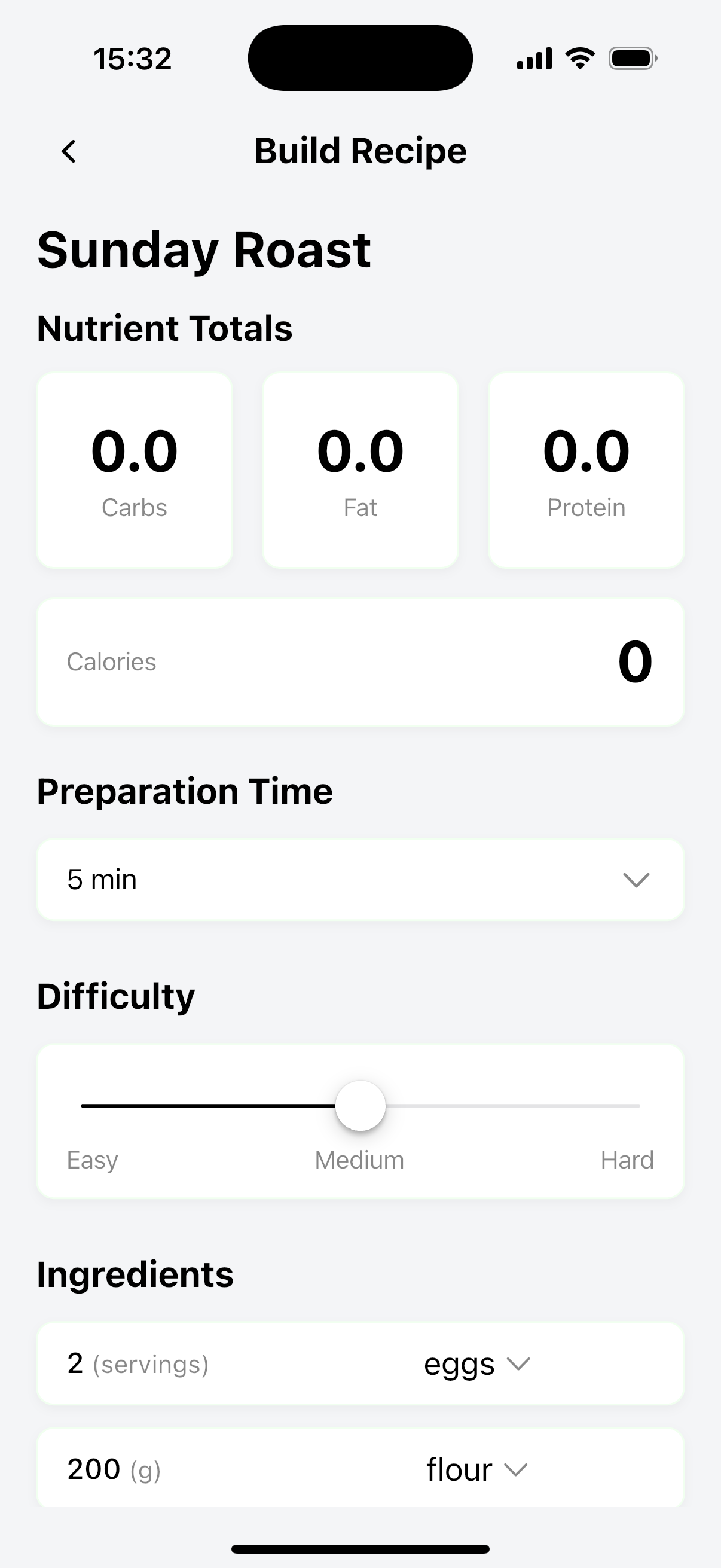
Recipe Builder Page - Ingredient Matching Interface
On the Recipe Builder page, you can match each basic ingredient in your recipe to a branded or saved item from your personal ingredient library.
To match an ingredient
- Tap the dropdown arrow next to the ingredient's name.
- Select the appropriate item from the list of ingredient suggestions.
Alternative options
If the ingredient suggestions displayed in the dropdown menu are not suitable for any reason, you have two alternative options:
1. Search Ingredients
- Opens an ingredient search with a pre-populated search term.
- You can remove this search term to see your ingredients list, or change it however you like.
2. Scan Barcode
Launches the barcode scanner, allowing you to manually scan the packaging of the ingredient you wish to use.
Troubleshooting Unmatched Ingredients
If an ingredient cannot be matched, its name will appear greyed out.
Tap the greyed-out ingredient to either search for a suitable replacement or scan a new ingredient using the same methods described above.
You can always save the recipe without setting any ingredients, which allows you to revisit the recipe and add ingredients once you find the right ones.
💡 Pro Tip
The Nutrient Totals at the top of the page will dynamically update when you set an ingredient. Once you have finished building your recipe and are satisfied with it, tap the save icon. You will then be taken back to The Recipes Page where you can view your completed recipe.
The Scanner Page
This page contains the core feature of Scranalyzer, our AI integrated scanners that help you to automatically generate your own recipes and ingredients.
The Scanner Page is primarily controlled by three buttons at the top of the screen:
Recipe Scanner
Scan recipes from cookbooks, magazines, or websites
Barcode Scanner
Quickly add packaged ingredients
Nutrition Label Scanner
Extract macros from nutrition labels
Recipe Scanner
Tap the left-hand button to activate the Recipe Scanner, the tool designed for automatically creating a recipe from your phone.
Take a photo of the ingredient list, whether it's from a cookbook, magazine, or website. If the list spans multiple pages or doesn't fit within a single image, no problem — you can easily add additional photos to capture everything.
After capturing your first photo, you have the option to crop it as needed. For best results, crop the image to include only the ingredient list and hide any unnecessary or irrelevant text.
Once you're satisfied with the crop, tap Done to continue.
💡 Tips
- If you need to add more photos, tap the Add More button. If no additional photos are required, tap Process All.
- You can also upload photos from your camera roll using the Upload button.
Barcode Scanner
Tap the middle button to launch the Barcode Scanner. This tool allows you to quickly add an ingredient, along with its nutritional information, directly to your Ingredients List.
To use it, simply scan the barcode on the ingredient's packaging. The app will automatically retrieve and add the relevant details and nutritional information for you to your Ingredients List.
⚠️ Troubleshooting
If Scranalyzer is unable to find an ingredient by its barcode, you can try:
- Try again
- Enter the ingredients barcode number into the search bar
- Manually search for the ingredient by name
- Manually create an ingredient via the Add Ingredient Page
Nutrition Label Scanner
The button on the far right enables the Nutrition Label Scanner, which extracts macronutrient information and amounts directly from an ingredient's label. This feature streamlines the manual entry process by automatically populating key nutritional values.
Use the Nutrition Label Scanner in the same way as the Recipe Scanner: simply photograph the ingredient's nutrition label, adding additional images if necessary. Once ready, tap Process All.
You will then be directed to the Add Ingredient page, where the nutrient values will be automatically pre-populated. Alternatively, you can upload existing images from your device using the Upload button.
The Ingredients Page
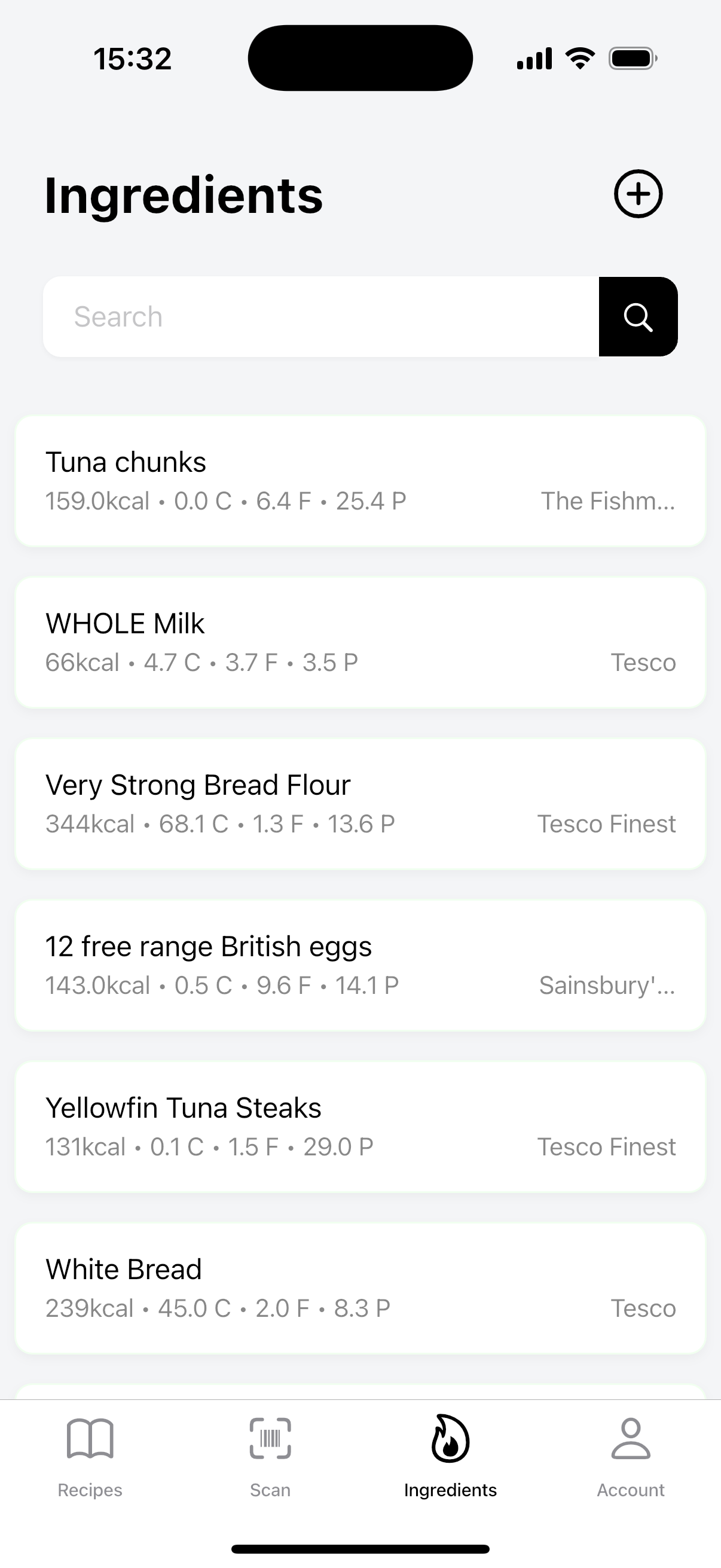
Ingredients Page Overview
The Ingredients Page is where you can view all your saved ingredients. If you have no saved ingredients, then this page will be blank. Each ingredient item in the list will show the ingredient's calories (kcal), protein, fat and carbs (grams) for a 100g serving.
💡 Tips
- Tapping on any ingredient you have saved will direct you to the Ingredient Info Page.
- Sliding an ingredient to the left will display a cross icon. This will delete the ingredient from your list.
- In the top right hand corner of this page is a plus icon. Tapping this icon will take you to the Add Ingredient Page, which allows you to manually create your own ingredients.
Searching Ingredients
As you type in the search bar, the ingredients list will automatically filter to show ingredients you have already saved.
However, if you tap the search icon, you will search across our full database of ingredients. We recommend using both the brand name and product name when searching.
Similar to the Ingredients List, each ingredient card shown contains the calories (kcal), protein, fat and carbs (grams) for a 100g serving; use this information to ensure you choose the correct ingredient.
Add Ingredient Page

Add Ingredient Page - Manual Ingredient Creation
The Add Ingredient Page allows you to manually create a new ingredient—ideal for homemade items or when a product isn't found using the barcode scanner. Simply complete the form with the relevant ingredient details, then tap Save. Once saved, the ingredient will appear in your Ingredients List and can be used in your recipes.
The Ingredient Info Page
After tapping on an ingredient card, you will be taken to a page which allows you to view a breakdown of the nutritional content for that ingredient.
From this page, you also have the option to edit the name of the ingredient.
⚠️ Important
All ingredients within our database are contributed to by other users. Consequently, the names given to ingredients may occasionally have mistakes, such as spelling errors. In this case, you may want to change the name to something else. To do this, simply tap the Edit icon in the top right-hand corner, where you will be able to amend the name details.
💡 Tip
You can adjust the "per 100 g" setting from this page to view the nutritional content for other weights. This can be helpful when the serving size of an ingredient is not 100g.